Password Bunker Pro guide

Password Bunker Pro app icon

How Password Bunker Pro works

Password Bunker Pro helps you keep login details, recovery notes, and account reminders in one organized mobile vault. Use this guide as the starting point for setup, daily use, and backup planning.

Getting Started

After installing Password Bunker Pro, create your vault and choose a master password that you can remember. This password protects access to the vault, so it should be unique and not reused anywhere else.
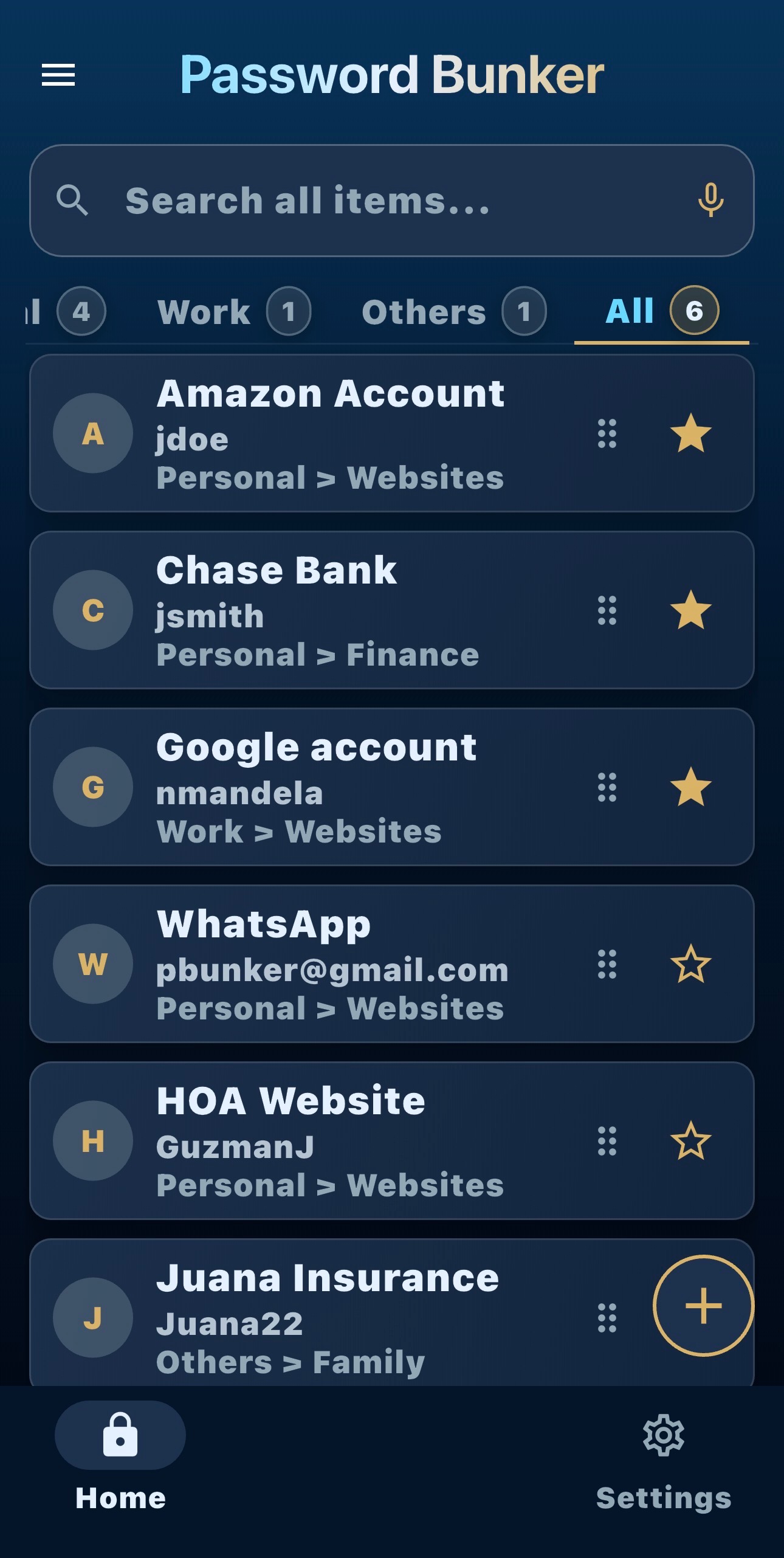
Password Bunker Pro home screen with sample records
Use the Home screen to browse all saved records or switch between Personal, Work, Others, and All tabs.
  1. Open Password Bunker Pro.
  2. Create a new vault when prompted.
  3. Choose a strong master password.
  4. Add your first account record.

Saving Records

Each record should represent one account or service. A good record usually includes the service name, website address, username, password, notes, and any recovery reminders.
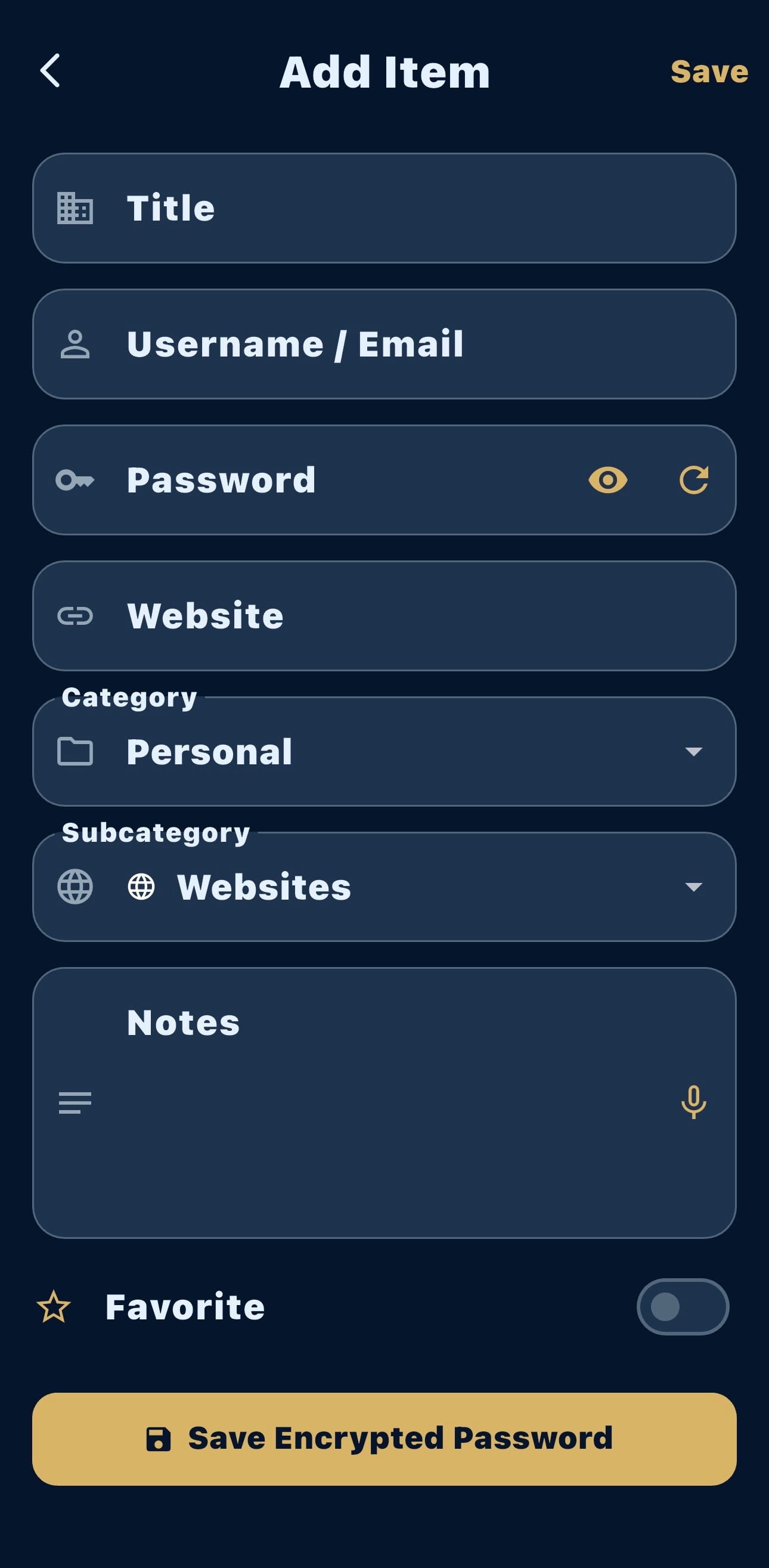
Password Bunker Pro Add Item screen
Add the title, username or email, password, website, category, subcategory, and notes.
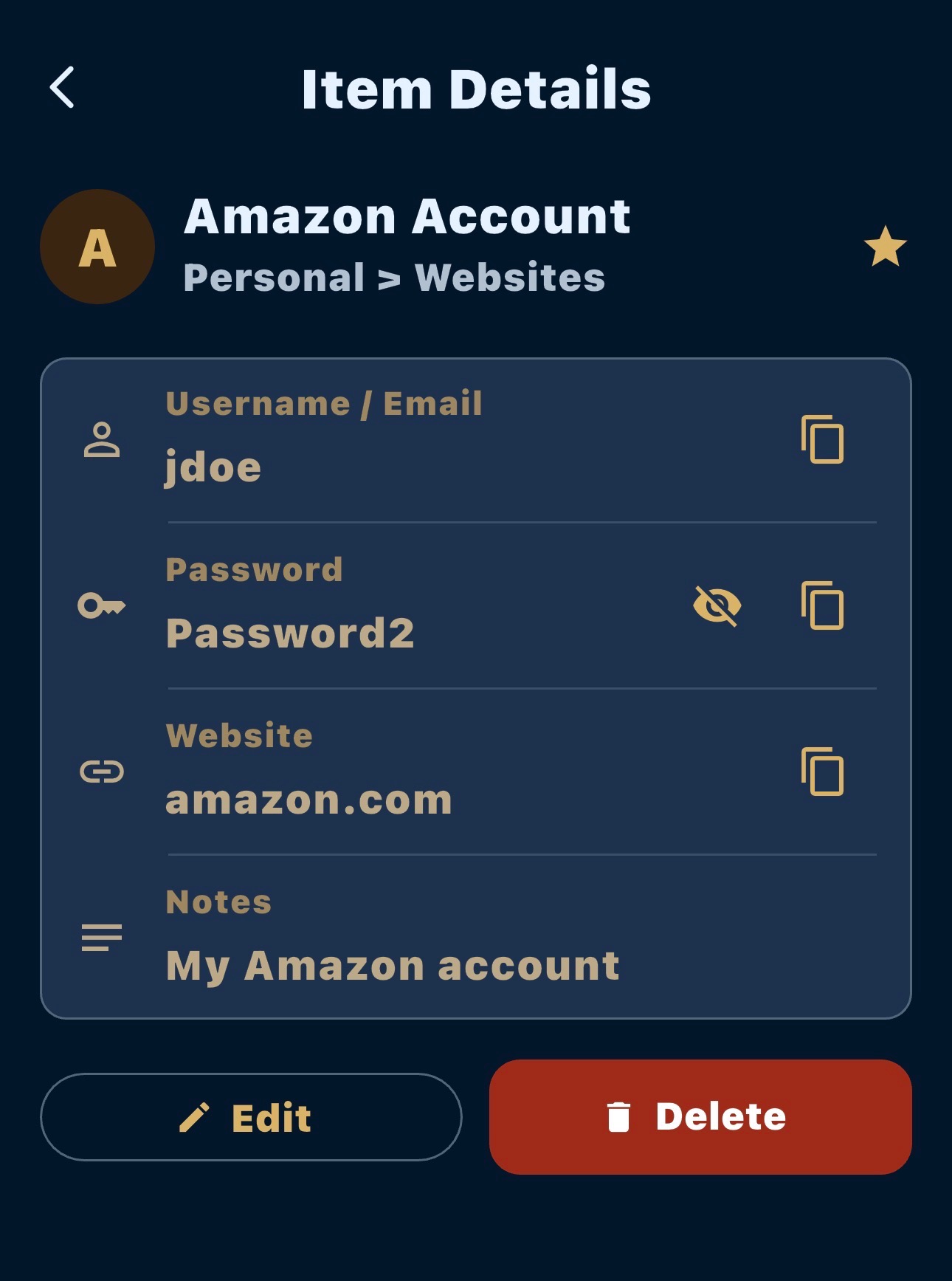
Password Bunker Pro Item Details screen for an account
Review saved details, copy values, edit a record, or delete it when it is no longer needed.
Tip: Use the notes field for recovery email addresses, security question hints, renewal dates, and 2FA reminders. Avoid writing full security-question answers if a short hint is enough.

Daily Use

Use search or categories to find a saved account quickly. When you update a password on a website, update the matching Password Bunker Pro record right away so the vault stays reliable.
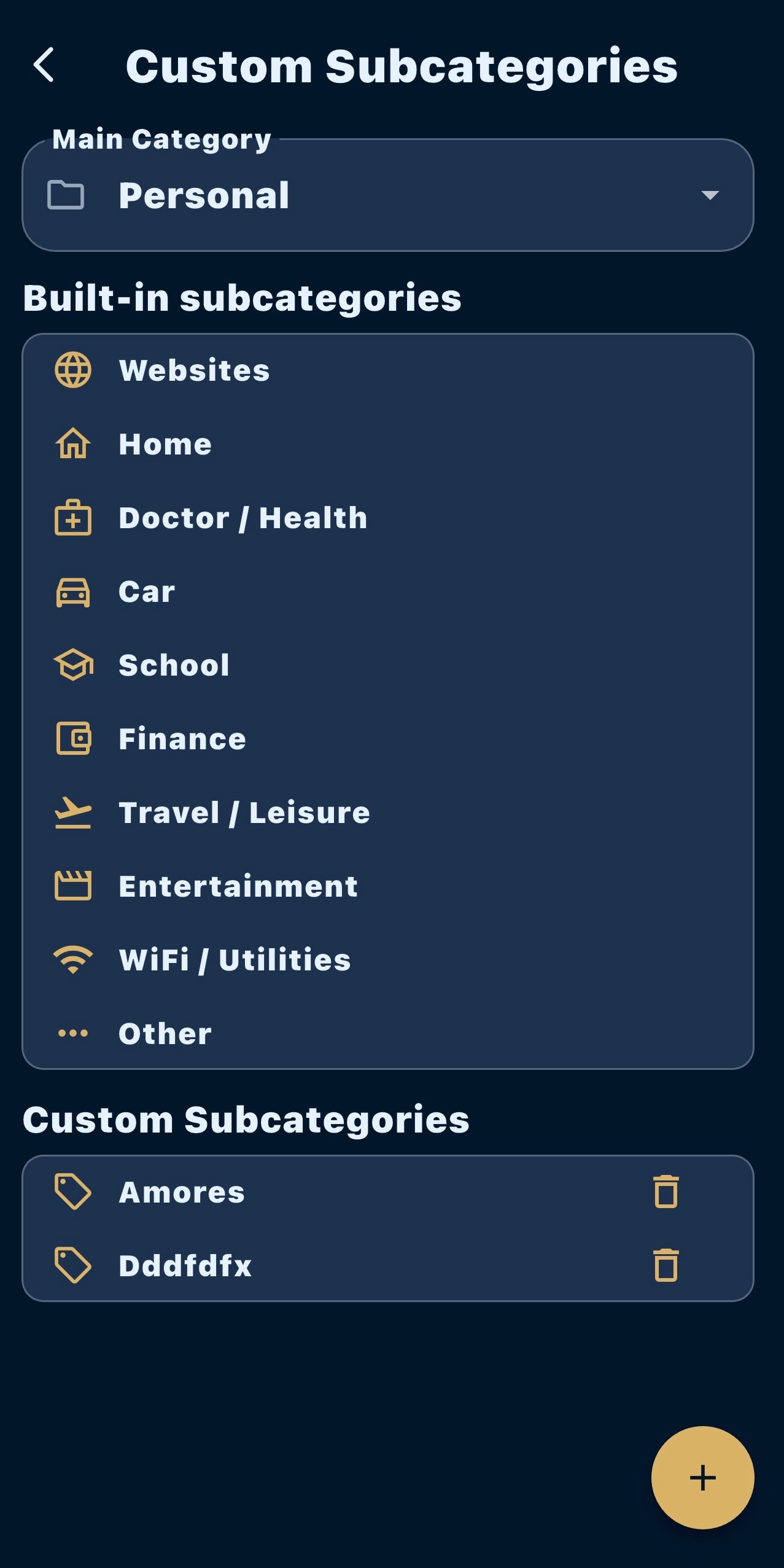
Password Bunker Pro custom subcategories management screen
Custom subcategories help keep records organized within Personal, Work, and Others.
  • Search by service name, username, or category.
  • Review older records periodically.
  • Keep recovery notes current when phone numbers or emails change.

Backup and Safety

Before launch, the final release notes should document where the vault file is stored, how export works, how users should back up their data, and what happens if they forget the master password.
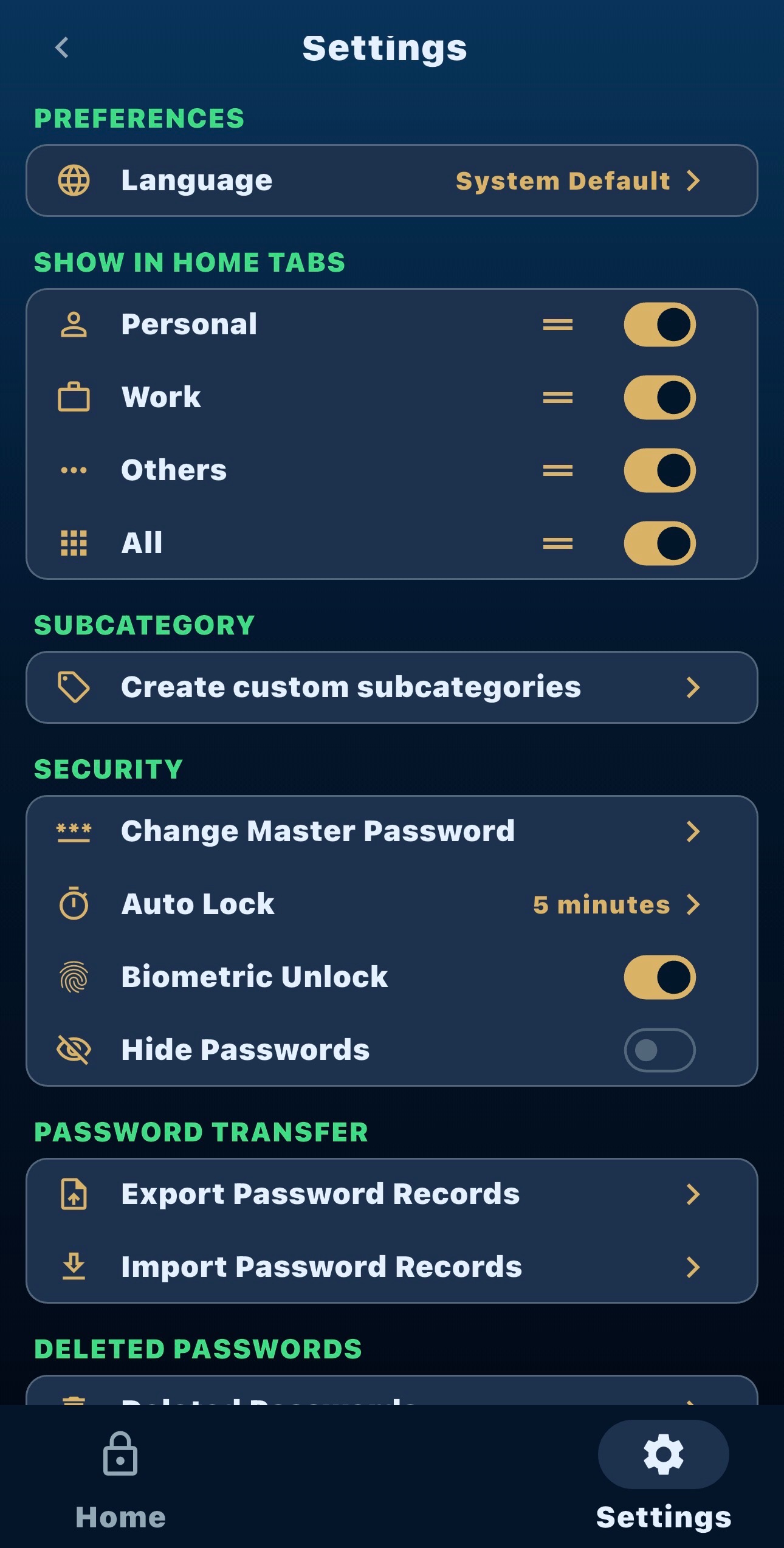
Password Bunker Pro settings screen with export and import password records options
The Settings screen includes security options, auto lock, biometric unlock, and password transfer tools.
Launch note: confirm the final vault storage, export, and recovery model before publishing public download links.

Support

For launch questions, use the contact page while the first public release is being prepared.

Contact support